
Vention HDMI Cable 3M (AACBI)
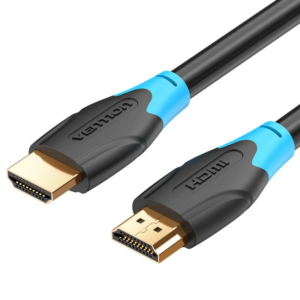
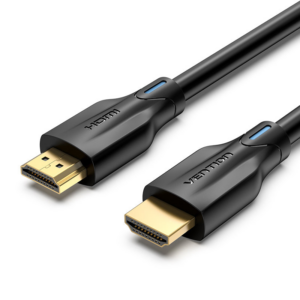
The Vention AACBI is a 3-meter standard round HDMI cable designed for reliable everyday connections between multimedia devices and displays. This traditional cable construction provides robust signal transmission with durable physical protection suitable for frequent connections and disconnections. It delivers full 4K video performance for home entertainment systems, office workstations, and gaming setups where proven reliability matters more than ultra-discreet routing.
Technical Specifications
Cable Specifications
- Length: 3 meters (9.8 feet)
- Cable Type: Round passive HDMI
- HDMI Version: 2.0 standard compliant
- Conductor Material: Oxygen-free copper (OFC) conductors
- Cable Diameter: Approximately 7.3mm
- Outer Jacket: Durable PVC material with ribbed texture
Performance Characteristics
- Maximum Resolution: 4K (3840×2160) at 60Hz
- Supported Resolutions: 1080p at 120Hz, 1440p at 144Hz, 2K at 75Hz
- Bandwidth: 18 Gbps data transfer rate
- Color Depth: Supports up to 48-bit Deep Color (16-bit per channel)
- Audio Support: Multi-channel digital audio including Dolby TrueHD, DTS-HD Master Audio, Dolby Atmos, and DTS:X
Physical Design
- Connector Type: HDMI Type A (Standard) male to male
- Connector Plating: 24K gold-plated contacts
- Connector Housing: Molded PVC with integrated strain relief
- Cable Weight: ~130g
- Minimum Bend Radius: 35mm to prevent conductor damage
Shielding & Protection
- Shielding Type: Triple-layer shielding
- Inner Shield: Aluminum foil wrap
- Outer Shield: Braided copper mesh
- Jacket Protection: PVC outer jacket resistant to abrasion
Features & Standards
- HDR Support: HDR10, Dolby Vision, and HLG compatible
- 3D Video: Full stereoscopic 3D content transmission
- HDMI Ethernet Channel: HEC enabled for network connectivity
- Audio Return Channel: ARC and eARC support for simplified audio connections
- Content Protection: HDCP 2.2 compliant for streaming services
- Compliance: RoHS certified, CE safety marked
Compatibility & Environmental
- Device Compatibility: Compatible with smart TVs, computer monitors, projectors, gaming consoles (PS5, Xbox Series X/S, Nintendo Switch), streaming devices, laptops, cameras, Blu-ray players, and AV receivers
- Operating Temperature: -10°C to 50°C (14°F to 122°F)
- Storage Temperature: -20°C to 70°C (-4°F to 158°F)
- Humidity Tolerance: 10% to 90% non-condensing
Use Cases & Applications
Home Entertainment Systems
Living rooms and media rooms use the Vention AACBI to connect Blu-ray players, cable boxes, and streaming devices to televisions. The round cable construction withstands movement from furniture rearrangement and cleaning activities better than flat alternatives. The 3-meter length suits entertainment centers where components stack vertically or sit on shelves adjacent to displays without requiring extensive cable management.
Gaming Console Connections
Gamers connect PlayStation 5, Xbox Series X/S, and Nintendo Switch systems to displays using reliable HDMI cables that handle frequent connection changes. The Vention AACBI supports 4K@60Hz for modern gaming graphics and 1080p@120Hz for competitive gaming on compatible displays. The durable construction withstands the connection cycles common when switching between multiple consoles or moving equipment for LAN parties.
Computer Monitor Connectivity
Office workers and home users connect desktop computers and laptops to external monitors for productivity setups. The cable delivers crisp text and graphics at high resolutions for office applications, design work, and content creation. The triple-layer shielding minimizes interference from nearby Wi-Fi routers, power supplies, and computer components that populate typical desk environments.
Conference Room Presentations
Meeting spaces use standard HDMI cables for reliable laptop-to-projector or laptop-to-display connections during presentations. The Vention AACBI handles frequent connections from different presenter devices without degradation. The molded strain relief prevents damage from accidental tugging when presenters move laptops or when cables get caught on furniture during room reconfigurations.
Professional Photography & Videography
Photographers and videographers connect cameras to monitors for live preview during studio shoots and video production. The cable transmits uncompressed video signals from mirrorless cameras and cinema cameras to external monitors for critical focus checking. The reliable signal transmission ensures what appears on the monitor accurately represents the camera’s output without latency or artifacts.
Classroom & Training Facilities
Educational institutions connect teaching computers to projectors or interactive displays for instructional content delivery. The durable construction withstands the daily connection cycles and movement common in classroom environments. Teachers appreciate the reliable connectivity that minimizes technical disruptions during lessons, while IT staff value the cable’s resistance to damage from student handling.
Home Office Video Conferencing
Remote workers connect laptops to external displays for video conferencing and productivity applications. The Vention AACBI provides stable connections that don’t interrupt video calls due to signal dropouts. The 3-meter length allows flexible desk arrangements with laptops positioned on stands or docking stations while monitors sit at optimal viewing distances.
Installation Considerations
Cable Routing Best Practices
Route the cable along furniture backs, through cable management channels, or along walls using cable clips spaced every 50-60 centimeters. The round design works well with standard cable management accessories including zip ties, velcro straps, and cable sleeves. Avoid sharp 90-degree bends by maintaining curves with at least 35mm radius to prevent internal conductor damage over time.
Strain Relief and Connector Care
The molded strain relief protects the cable at connection points, but additional care extends cable life. Avoid pulling cables out by the cord itself; always grasp the connector body when disconnecting. When devices mount in tight spaces, ensure adequate clearance behind connectors so the cable doesn’t bend sharply immediately at the connection point, which stresses internal solder joints.
Managing Electromagnetic Interference
While the triple-layer shielding provides excellent protection, optimize signal quality by routing cables away from power transformers, fluorescent lighting ballasts, and dimmer switches when possible. In equipment racks or behind entertainment centers with multiple power supplies, separate HDMI cables from power cords by at least 10-15 centimeters. This practice prevents interference even though the shielding handles typical residential environments without issues.
Excess Cable Management
The 3-meter length may provide more reach than some installations require. Coil excess cable loosely rather than creating tight loops that can act as inductive coils potentially affecting signal quality. Use velcro cable ties to create gentle coils with 15-20 centimeter diameters. Avoid bundling HDMI cables tightly with power cables; instead, use separate cable management channels when both run parallel paths.
Connector Orientation and Accessibility
HDMI connectors are not symmetrical, so ensure proper orientation before inserting into ports. The wider side of the connector corresponds to the wider side of the port. For wall-mounted displays or equipment in tight spaces, consider connector accessibility for future maintenance or equipment changes. The molded connectors add approximately 2-3 centimeters to each end compared to the cable diameter itself.
Temporary vs Permanent Installation
For permanent installations, secure the cable along its entire route to prevent sagging and accidental disconnection. Use cable clips, conduit, or cable channels appropriate for the installation environment. For temporary setups where cables get connected and disconnected frequently, allow slight slack at connection points to accommodate movement without stressing connectors. The durable construction handles regular repositioning well.
Testing After Installation
After routing the cable, test the connection by verifying the display shows the correct resolution and refresh rate in your device settings. Modern devices typically auto-negotiate the best settings, but manually verify that 4K@60Hz is selected if that’s your desired resolution. If experiencing issues like sparkles, intermittent signal loss, or no display, check that connectors are fully seated and no sharp bends exist along the cable route.




 No products in the cart.
Reviews
There are no reviews yet.